
Download WinSSHTerm – Free SSH Client GUI for PuTTY & KiTTY on Windows, Mac, Android, iOS
WinSSHTerm is a free, lightweight, and secure GUI application designed to enhance your SSH workflow by combining the power of PuTTY and KiTTY into a single, user-friendly interface. Whether you're a system administrator, developer, or IT professional managing multiple remote servers, WinSSHTerm streamlines your terminal experience with tabbed sessions, folder organization, and seamless file transfers. This open-source tool eliminates the hassle of switching between multiple SSH clients, offering a centralized platform to manage all your remote connections.
With support for both Windows, Mac, and mobile platforms, WinSSHTerm ensures flexibility across devices. You can securely connect to Linux, Unix, and other SSH-enabled systems while enjoying intuitive navigation through keyboard shortcuts and customizable layouts. Although WinSSHTerm acts as a frontend and requires PuTTY or KiTTY to be installed separately, the integration process is straightforward and well-documented.
The app is ideal for those seeking a free, reliable, and feature-rich SSH management solution that boosts productivity and simplifies remote access.
Key Features of WinSSHTerm
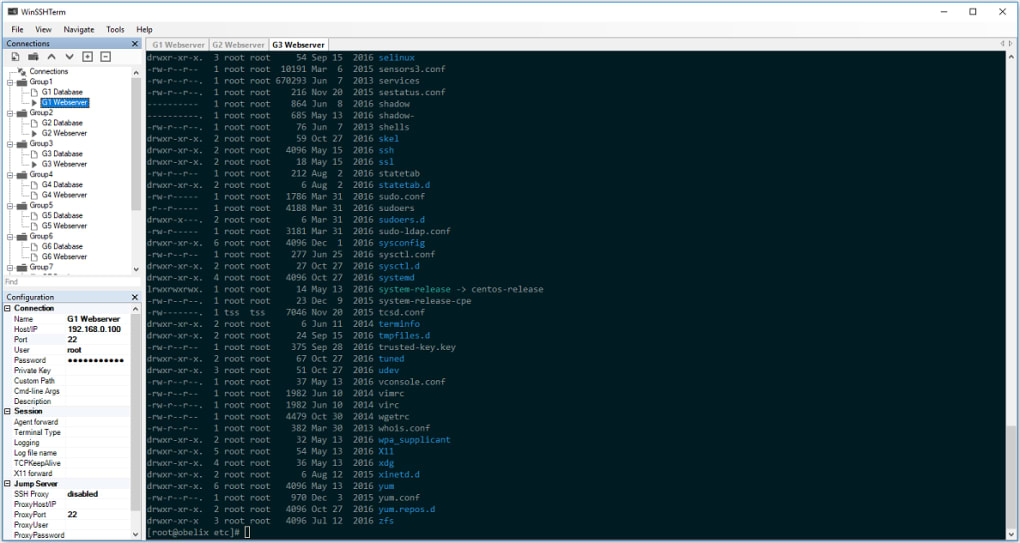
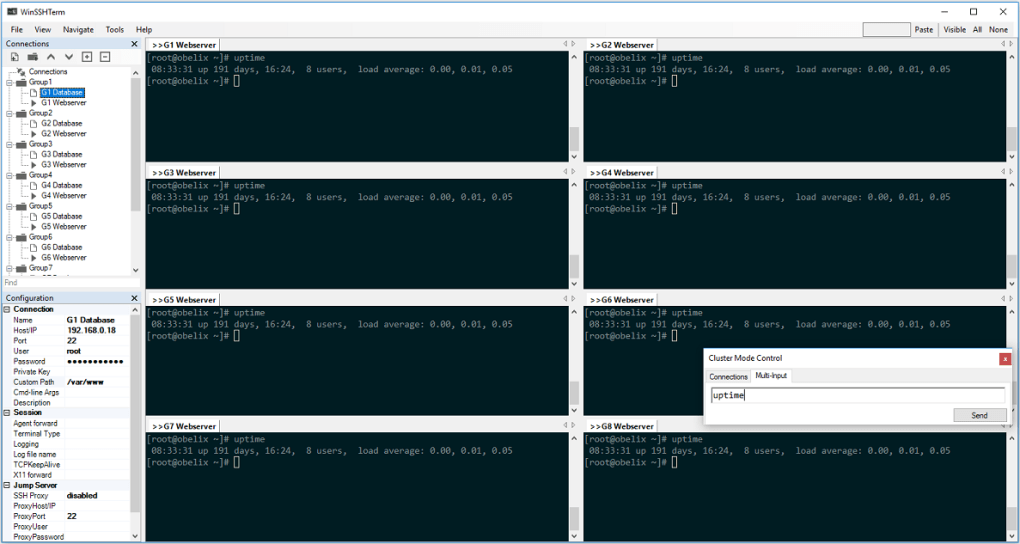
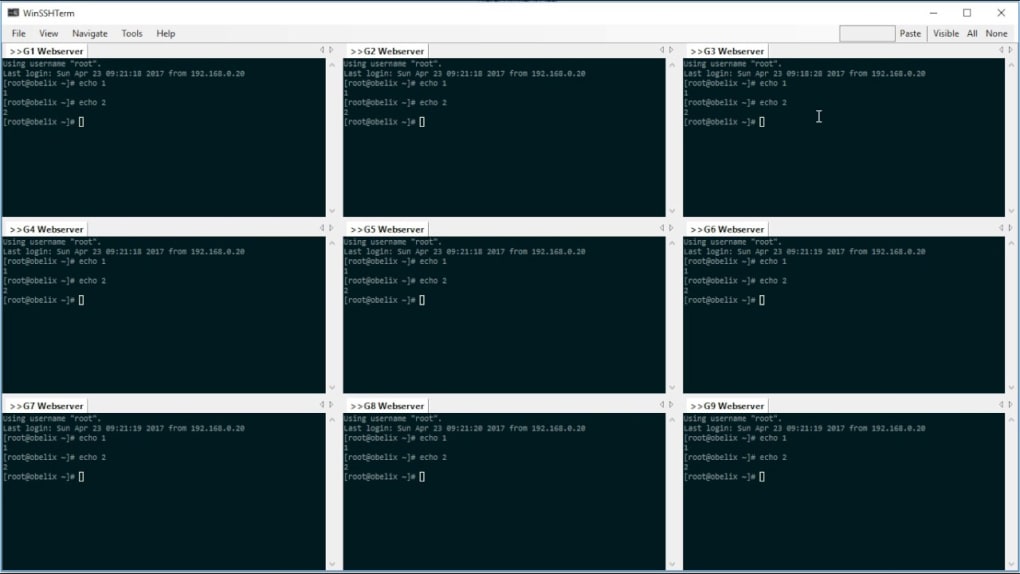
WinSSHTerm brings a modern and efficient interface to traditional SSH clients, making it a go-to tool for managing remote systems. One of its standout features is multi-session tab support, allowing users to open several SSH connections simultaneously within a single window. This is especially useful when managing multiple servers or performing parallel tasks across different environments. Each session can be easily switched using keyboard shortcuts like Ctrl+Tab, significantly improving workflow efficiency.
Another major advantage is folder-based session organization. Users can create custom folders to group connections by project, environment (e.g., Dev, Staging, Prod), or client, ensuring that your SSH configurations remain clean and accessible. This feature is a game-changer for system administrators who juggle dozens of remote machines daily.
WinSSHTerm also supports file transfer via SCP/SFTP, enabling users to securely move files between local and remote systems without switching to external tools. This integration reduces context switching and enhances productivity. Additionally, it offers X11 forwarding support, which allows graphical applications from remote servers to display on your local machine—perfect for developers working with GUI-based tools on Linux servers.
The app is lightweight and fast, consuming minimal system resources while delivering robust performance. Its open-source nature ensures transparency, community-driven improvements, and regular updates. With a clean, minimalistic interface, WinSSHTerm is beginner-friendly yet powerful enough for advanced users. Whether you're connecting via SSH, managing server configurations, or automating deployments, WinSSHTerm simplifies the process with a secure, reliable, and free solution.
How to Install and Use WinSSHTerm
Installing WinSSHTerm is a simple process, but it does require a few preliminary steps since it functions as a GUI frontend for PuTTY and KiTTY. First, download the latest version from the official GitHub repository or the developer’s website. The application is available as a portable .zip file, meaning no installation is required—just extract the folder and run the executable.
Before launching WinSSHTerm, ensure that either PuTTY or KiTTY is installed on your system. If not, download PuTTY from its official site or KiTTY from its GitHub page. Once installed, launch WinSSHTerm and go to Settings > SSH Clients. Here, you’ll need to browse and select the executable files for PuTTY (putty.exe) and/or KiTTY (kitty.exe). This step embeds the SSH clients into WinSSHTerm’s interface, enabling full functionality.
After configuration, you can start adding sessions. Click File > New Session and enter the host IP, port, connection type (SSH), and authentication details. Save the session and organize it into folders for better management. You can now open multiple tabs, switch between them effortlessly, and even set up auto-login credentials (with caution, as this involves security trade-offs).
For advanced users, WinSSHTerm supports custom key bindings, session templates, and integration with external tools. The interface is intuitive, with clear menus and tooltips guiding first-time users. Once set up, you’ll enjoy a seamless SSH experience that’s faster and more organized than using PuTTY or KiTTY alone.
Compatibility and System Requirements
WinSSHTerm is primarily designed for Windows operating systems, with full support for Windows 7 and all newer versions, including Windows 10 and Windows 11. It runs natively on both 32-bit and 64-bit architectures, ensuring broad compatibility across desktop and laptop environments.
While the official release is Windows-only, the open-source codebase allows developers to adapt it for other platforms. Some community contributors have explored porting WinSSHTerm to Mac OS using .NET Core or Mono, though these versions are not officially supported. For mobile users, there are no native apps for Android or iOS, but alternative SSH clients like Termius or JuiceSSH offer similar functionality on smartphones and tablets.
Since WinSSHTerm relies on PuTTY and KiTTY, the underlying SSH clients must be compatible with your OS. PuTTY and KiTTY are both available for Windows and Mac, so if you're on a Mac, you can use WinSSHTerm in conjunction with PuTTY via Wine or a virtual machine, though this adds complexity.
The software has minimal system requirements: a modern CPU, at least 512 MB of RAM, and 50 MB of free disk space. It runs efficiently on older machines and does not impact system performance. The app is ideal for professionals working in IT, DevOps, or software development who need a reliable, free, and secure way to manage remote servers across different networks.
Pros and Cons of WinSSHTerm
- Pros:
- Free and open-source with no hidden costs
- Lightweight and fast performance
- Supports multiple SSH sessions in one window
- Intuitive tabbed interface with keyboard shortcuts
- Folder-based session organization for better management
- Integrated file transfer (SCP/SFTP) and X11 forwarding
- Easy to set up and customize
- Regular updates and active community support
- Cons:
- Requires separate installation of PuTTY or KiTTY
- Not officially available for Mac, Android, or iOS
- Limited GUI customization options
- May require technical knowledge for advanced configurations
- Security risks if session credentials are saved without encryption
Frequently Asked Questions (FAQ)
What is WinSSHTerm used for?
WinSSHTerm is a free GUI tool that serves as a frontend for PuTTY and KiTTY, allowing users to manage multiple SSH connections in a single interface. It’s ideal for system administrators, developers, and IT professionals who need to connect to remote servers securely and efficiently.
Is WinSSHTerm free to download and use?
Yes, WinSSHTerm is completely free and open-source. You can download it from the official GitHub repository without any cost or licensing restrictions.
Do I need to install PuTTY or KiTTY separately?
Yes, WinSSHTerm does not include PuTTY or KiTTY. You must download and install one or both of these SSH clients separately before configuring them in WinSSHTerm.
Can I use WinSSHTerm on Mac or Linux?
WinSSHTerm is officially available only for Windows. However, the source code is open, and developers can attempt to port it to Mac or Linux using .NET Core or Mono, though these versions are not officially supported.
Does WinSSHTerm support file transfers?
Yes, WinSSHTerm integrates with PuTTY’s file transfer tools, allowing secure SCP and SFTP transfers between your local machine and remote servers.
Conclusion: Is WinSSHTerm Worth Downloading?
If you're managing multiple remote servers and find PuTTY or KiTTY too cumbersome to navigate, WinSSHTerm is an excellent upgrade. Its clean interface, tabbed sessions, and folder organization make SSH management a breeze. While it requires a small setup step—embedding PuTTY or KiTTY—it delivers a powerful, free, and secure solution that significantly boosts productivity.
Whether you're a seasoned sysadmin or a developer working across cloud environments, WinSSHTerm offers the tools you need to stay efficient and organized. With regular updates, strong community backing, and full compatibility with Windows systems, it’s one of the best free SSH client GUIs available.
Download WinSSHTerm today and take control of your remote connections with ease.







